
Bandmaster V
Now controls PW-1 amp with non-Icom radios
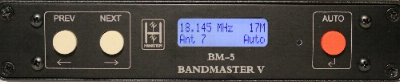 Order Bandmaster V -
$295
Order Bandmaster V -
$295
*
Jumper free configuration
* Built-in USB interface
* RS-232, CI-V and band data interfaces
* USB connection to Flex SDR radios
* 12 programmable relay outputs
* Generates Icom CI-V data stream from non-Icom radios
* Generates Yaeso & Kenwwod data stream from Icom radios
* Bi-directional band data interface
* Automatic antenna selection for each band
* Field upgradable firmware
* Dimensions 1.4" x 6.7" x 6.7" (HWD)
* Weight 1.2 pounds
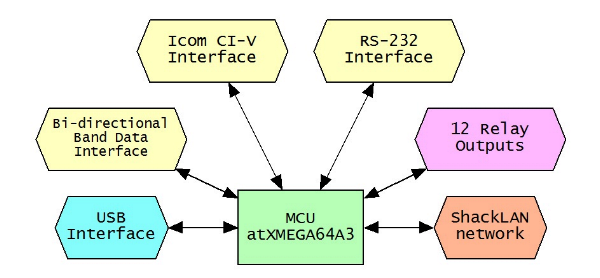
The BM-5 BandMaster V is a full featured unit that contains a
universal band decoder and antenna switch controller. It features five
communication channels. All channels are active simultaneously and
provide data translation for your station accessories. In other words,
if you are using an Icom radio on the CI/V interface the BandMaster V
will output 4-bit band data as well as RS-232 data in Yaesu or Kenwood
format. In reverse, when using a radio on the RS-232 interface the
BandMaster V will out 4-bit band data as well as an Icom CI/V data
stream.
The USB interface may be connected to your PC for radio control. The USB
interface may be connected directly to a Flex SDR with no additional
cables or interfaces required.
The BandMaster V contains a fully bi-directional band data interface.
The band data interface operates in input mode when using band data from
a Yaesu or Elecraft radio. When operating in band data mode the
BandMaster V will output data on both the CI/V and RS-232 interfaces
with the frequency fixed to the middle of the current band. The band
data interface operates in output mode when any of the other data
interfaces are used for your radio.
Configuring the BandMaster V is easily done from the front panel. No PC
software is required. Antennas are easily assigned to each band. No
diode matrix is needed for antennas used on multiple band.
The BandMaster V has 12 relay outputs which can configured in up to 16
different combinations. Any combination may be assigned as the default
antenna for each band.
Installation
Before you begin
Installing and configuring the BM-5 BandMaster V is a simple process. Most configuration may be done from the front panel. Additional configuration options are only available when using the BM5 Setup App. You must have version 3 or later firmware in the BM-5 to use the setup program.

Power and network connections
The first step in the installation of the BM-5 is to connect 12vdc power to the unit. This can be done using either the power jack or via either ShackLAN jack from another device on the network. A power cable is included. More information for the network and power connections are here.
USB connector
The USB connector is used to transfer data to and from the radio to your computer using a standard USB cable. It is also used to update the firmware and configure the BM-5 using the BM-5 Setup App.. The USB may also be connected directly to Flex SDR radios. The USB driver should automatically install itself. If it does not, drivers can be downloaded at https://ftdichip.com/drivers/.
CI-V connector
This connector is used to interface to Icom radios or the Icom PW-1 amplifier. It uses the standard 1/8" phone plug used on all Icom radios for computer control. It should be connected to the REMOTE jack on Icom equipment. For other makes of radios a CI-V data stream is sent from this connector to allow control of external devices.
Radio connector
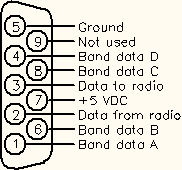 This connector is used to interface to all radios except Icom. You can
use the same cable you would normally connect between the radio and a
computer except when using the band data outputs from Yaesu and K3
radios. It is preferred that you use the RS-232 data from the radio and
not the band data outputs otherwise there will be reduced functionality.
If you still wish to use the band data outputs, you will need to make
your own interface cable or purchase a custom cable. Band data signals
are labeled A, B, C, D in most radio manuals but may be designated as 1,
2, 3, 4 or 1, 2, 4, 8. Pinouts for the radio connector are shown in the
diagram to the right. Consult your radio manual for pinouts on the radio
connector. When acquiring radio data from the CI-V, USB or band data
this connector will transmit a RS-232 data stream in either Kenwood or
Yaesu format. When not using band data from the radio this connector
will output band data information.
This connector is used to interface to all radios except Icom. You can
use the same cable you would normally connect between the radio and a
computer except when using the band data outputs from Yaesu and K3
radios. It is preferred that you use the RS-232 data from the radio and
not the band data outputs otherwise there will be reduced functionality.
If you still wish to use the band data outputs, you will need to make
your own interface cable or purchase a custom cable. Band data signals
are labeled A, B, C, D in most radio manuals but may be designated as 1,
2, 3, 4 or 1, 2, 4, 8. Pinouts for the radio connector are shown in the
diagram to the right. Consult your radio manual for pinouts on the radio
connector. When acquiring radio data from the CI-V, USB or band data
this connector will transmit a RS-232 data stream in either Kenwood or
Yaesu format. When not using band data from the radio this connector
will output band data information.
Relay common selectionThe BM-5 has 12 internal relays with the relay common available at the rear panel. This common connection may be used to enable the relays to switch to +12vdc, ground or an external voltage. The factory setting of supplying 12v on the outputs will work for most users.These selections are made using jumper pins inside the unit. |
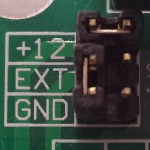 Supplies 12vdc when activated. "C" pin is ground. (Factory default selection) |
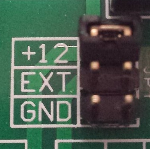 Supplies 12vdc when activated. "C" pin is not connected. |
| The jumper is located behind the relay connectors. The factory default is to provide 12vdc when the relays are activated and should cover most installations. To change the common selection, remove the 4 screws from the rear panel and slide the board out far enough to access the jumpers. Shown to the right are 4 selection options. |
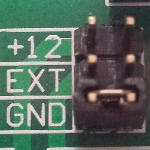 Switches to ground when activated. "C" pin is not connected. |
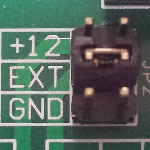 Connects to the power source on the "C" pin |
Relay output connections
Relay connections are made via the pluggable 7-pin connectors on older units and to integrated screw terminals on later units. No soldering is required. Each connector has outputs for 6 relays. The relay outputs are labeled 1 thru 12. The G pin is ground and the C pin is for an external voltage, if desired. Attach the control wires by inserting them into the holes in the connector plug and tightening the screw to secure them.
Configuration from Front Panel
Entering configuration mode
The configuration menus are entered by pressing the NEXT and PREV buttons at the same time. The Configuration screen should be displayed. The Next and Previous buttons are now used to move between the various configuration menus. When at the Configuration screen pressing PREV will exit the configuration modeand NEXT will access the first menu option. Exit the configuration mode by pressing PREV until the main operating screen appears.
Configuring the radio
Begin radio configuration
After entering the configuration mode, press NEXT until the Setup Radio
menu is displayed. (or PREV if
you have already passed it). When the Setup Radio screen is showing
press AUTO to begin configuring the radio interface.
NOTE: For Icom
radios you must have CI/V Transceive enabled to complete the
configuration process.
Set radio number
The first item to set is the radio number. The radio number is used when you have multiple BM-5 units. Set the number to #1 if only a single BM-5 is present; otherwise, set the number according to your station requirements. Press AUTO when finished.
Set radio type
After pressing AUTO to set the radio number the Radio Type screen will appear. Cycle through the selections using the Next and Previous buttons. Press AUTO when the desired radio type is selected. The Yaesu and Kenwood selections offer a FA and IF option. Choose the one used by your logging software. The FA selection uses the frequency on VFO A while the IF selection uses the frequency on the main display, regardless of which VFO is active. If Band Data was selected you are now finished with the radio configuration. For all other radio types the Baud Rate screen will now be shown.
Set radio baud rate
After selecting the radio type you must select the radio baud rate. This baud rate applies to both the RS-232 and USB connections. Use Next and Previous to step between the selections. Press AUTO when the desired baud rate is selected. The Radio Number screen will now be displayed.
Set radio polling
After selecting the baud rate you must set the radio polling. Press Next or Previous toggle between Enabled and Disabled. Leave polling enabled except under special circumstances. When polling is disabled you must have your logging or radio control software poll the radio or the band decoder will not function. Press AUTO when finished.
Set radio timeout
This is last setting, except for Icom radios. The BM-5 has a timeout that will release all antennas when no data is received from the radio for approximately 20 seconds. This option should be normally left enabled. If disabled, the BM-5 will hold antenna selections indefintely even after the radio is turned off. Press AUTO when finished.
Acquire CI-V address (Icom only)
The SM-8 automatically acquires the CI-V address of Icom radios after exiting the radio configuration. After entering the settings for your radio the BM-5 will ask you to turn the VFO knob to acquire the CI-V address of the radio. The acquired address will be then be displayed. NOTE: This requires the CI-V Transceive function on the radio to be enabled.
Configure the relays and antennas
The factory default settings are satisfactory for most users. The defaults assign relay outputs 1-12 to antennas 1-12, respectively. If this is acceptable you may skip this step and proceed to assigning a default antenna to each band.
Begin relay configuration
Enter configuration mode. Press NEXT four times to move to the Config Relays screen. (or PREV if you have already passed it. Press AUTO when the Config Relays screen is displayed.
Select antenna to configure
Press NEXT or PREV to select the antenna to configure. The exit screen is located between Antenna 1 and Antenna 16. Press AUTO when the desired antenna is selected.
Select relays for antenna
Use NEXT and PREV to move among the 12 relays. Press AUTO to toggle
the relay ON / OFF. When finished configuring an antenna, press NEXT or
PREV to the exit screen which is located between Relay 1 and Relay 12.
Press AUTO to return to the Config Antenna screen. Use NEXT or PREV to
select the next antenna to configure and repeat the process for each
relay.
Assigning the antennas
You must first configure the radio before you can assign
antennas to each band as the band to be configured is selected
by changing bands on the radio. The Assign Antennas menu is
accessed by entering the configuration mode and then pressing
NEXT once.
Set antenna for each band
Set the radio to the band to be configured and then, using the NEXT and PREV buttons, select the antenna for the current band. Selections are automatically saved. Switch the radio to the next band and select the desired antenna. Do this for each band. Press AUTO when finished.
This completes the configuration for basic operation. If you are controlling your radio using the BM-5s internal USB to RS-232 converter or connecting a Flex radio to the USB you must go to the Control on USB menu item and set it to disable.
Advanced features
Auto on Band Change
The Auto on Band Change feature, when enabled, will automatically set the BM-5 to Auto when changing bands. This can prevent transmitting into a wrong antenna if an antenna has been manually selected. It is recommended to leave this feature enabled. If, for some reason, you wish to disable it, enter configuration mode and press NEXT until you reach the Auto Band Change menu. Press AUTO and then either NEXT or PREV to toggle between Enabled and Disabled. Press AUTO when you have made your selection.
Aux RS-232 data stream
When the RS-232 connection on the radio connector is not being
used by your radio, such as Icom, band data or Flex SDR on USB, the BM-5
can automatically generate a data stream on the RS-232 pins in either
Kenwood or Yaesu format. This is useful for automatically controlling
station accessories. You may choose either the FA or IF data formats.
The one to choose depends on the device using this data stream. The baud
rate is fixed at 9600.
To enable this option, enter the configuration mode and press NEXT until
the Set AUX RS-232 screen is displayed. Press AUTO to configure the
options. Now use PREV and NEXT to select the Disabled, Kenwood (FA),
Kenwood (IF), Yaesu (FA) or Yaesu (IF) mode. Press AUTO when finished.
NOTE: When using band data from the radio the Aux RS-232 and CI/V data
stream frequency is set to the middle of the band.
Control on USB
The Control on USB function is used to switch between using the USB port for radio control or allowing configuration and Shacklan network access via the USB port. The default is sets this function to Enabled to allow the BM-5 Setup App to access the unit via USB. If you wish to control the radio via the USB port or have a Flex radio connected to the USB, you must set this to Disabled for the radio to work properly. Enter configuration mode and press NEXT until the Control on USB menu appears. Now press AUTO and use NEXT or PREV to toggle between Enabled and Disabled. Press AUTO after you have made your selection.
Icom PW-1 Control and Pair to PW-1
The PW-1 control interface is covered on its own page.
Monitor Relays
This is a handy feature that allow you to visually see which of the 12 relays are active for the current antenna selection. Please note that manually selecting antennas is disabled while accessing any of the menus as the NEXT and PREV buttons are used for menu navigation. Before using this function be sure to place the BM-5 in AUTO mode if you wish to check relay configuration for each band. To monitor the active relays, enter configuration mode and press NEXT until the Monitor Relays menu appears. Press AUTO to begin monitoring. The left group indicates outputs 1-6 and the right group is 7-12. An active output will be indicated by a "1" on the display. Press AUTO again to exit the monitoring function.
Reset relay data
The Reset Relay Data function is used to reset the relay configuration for all antenna to the factory default of Relay 1 for Antenna 1, Relay 2 for Antenna 2, etc. Antennas 13 thru 16 will have no relays assigned to them. If you wish to reset all the relays data enter configuration mode and press NEXT until the Reset Relay Data screen is displayed. Press AUTO to enter Reset All Relays screen. Press NEXT or PREV to toggle between YES and NO. Press AUTO when finished.
Restore defaults
The Restore Defaults function will clear all user data and restore them to factory defaults. Be aware that using this function will erase all of your settings. If you wish to reset the BandMaster V to factory defaults enter configuration mode and press NEXT until the Restore Defaults screen is displayed. Press AUTO to enter the Clear Settings screen. Press NEXT or PREV to toggle between YES and NO. Press AUTO when finished.