
IC-8 Integrated Controller
Order IC-8 Controller - $249
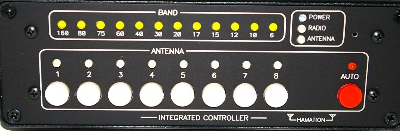 * Jumper free configuration
* RS-232, TTL and CI-V interfaces
* Configurable band limits
* Built-in USB interface
* Set default antenna per band
* Shows antennas used by all radios
* Amplifier protection when no antenna selected
* Field upgradeable firmware
* Anodized aluminum case
* Laser engraved panels
Introduction
The ShackLAN Integrated Controller has many advanced features not found
on the traditional antenna switch controller or band decoder. The
built-in band decoder is the heart of a ShackLAN antenna control system.
It is responsible for obtaining band information from the radio and
broadcasting the band and frequency data over the entire ShackLAN
network.
The IC-8 Integrated Controller combines all the features of the
Bandmaster series of decoders into an intelligent antenna switch
controller. It can operate in Auto mode which selects antennas based on
the band/frequency from the radio. It also gives to the ability to
manually select antennas. Selection of multiple antennas simultaneously
is possible by simply pressing multiple buttons at the same time. The
LED displays show the current band and antenna selection. It also
indicates antennas in use by a other radios as well as status of the
data connection to the radio and antenna switch. Another feature is
built-in amplifier protection system. This system will open the PTT
connection from the radio to the amplifier when no antennas are
connected, thus preventing the amplifier from keying when no antenna is
present.
Information on updating the IC-8 firmware is here.
Installation Part 1
Before you begin
Installing and configuring the IC-8 Integrated Controller is a simple process which involves connecting the unit to your computer and the ShackLAN network, setting the radio configuration and then connecting the decoder to your radio and any logging software. Optionally, you can route the amplifier PTT line through the controller for amplifier protection if no antenna is connected. Please DO NOT CONNECT YOUR RADIO to the unit until after the radio configuration has been done. You must configure the decoder before connecting the radio. Installation steps are listed below.
Switch and power connections
The first step in the installation of the decoder is to connect the unit to the ShackLAN network and power, if necessary. Power may be supplied thru the power jack or via the NET 1 connector. Instructions for the network and power connections are here. NET 1 is used to connect to the antenna switch and older ShackLAN devices. NET 2 is used to interconnect with other ShackLAN compatible devices. The two NET connectors are in parallel.
USB connection
The USB connector is used to transfer data to and from the radio to your computer using a standard USB cable. It is also used to configure the controller and update the firmware. The USB interface uses the popular FTDI chip and drivers and most computers already have the driver installed and the USB driver should automatically install itself. If it does not, drivers can be downloaded at https://ftdichip.com/drivers/. It is recommended you update the default USB virtual port settings for best performance. At this time you should power up the controller and the LED test will light each LED in sequence. You are now ready to configure your controller.
Configuration Part 1
The first step in configuring the IC-8 is done using the pushbuttons on the front panel. Power up the controller and after all LEDs are scanned the IC-8 will flash one of the eight antenna selection LEDS in green 3 times indicating the radio number followed by flashing one of the LEDs in red 3 times showing the switch number. The factory defaults are radio #1 and switch #1.
Setting the radio number
Setting the radio number is done with the front panel buttons. Simultaneously press AUTO and one of the 1 thru 4 antenna selection pushbuttons and then release all pushbuttons. The LED for the radio number will flash green 3 times.
Setting the switch number
The IC-8 is set to switch #1 from the factory. This should not be changed unless you have more than one of the Hamation Shacklan antenna switches. Antenna selection pushbuttons 5 thru 8 correspond to switch number 1 thru 4. Set the switch number by simultaneously pressing AUTO and one of the 5 thru 8 pushbuttons and then release all pushbuttons. The switch number will flash red 3 times.
Configuration Part 2
The rest of the configuration process requires the IC-8 Setup software utility available here and on the Downloads page. Before proceeding be sure you have selected the desired radio number using the front panel pushbuttons.
Connecting to the IC-8
You may configure the IC-8 via the Shacklan network thru a device on the network or directly via a USB connection to the controller. Start the IC-8 Setup utility and select the Radio Options tab. Now set the Radio Number field to the same as the controller.
Direct USB connection
If you are using a direct USB connection to the IC-8 connect a standard USB cable from the the controller to your computer. A new COM port will appear in the port list. Click on the new COM port to establish a connection to the controller.
Connect over the Shacklan network
Click on the COM port that is assigned to the device you are using to access the network.
Radio Options
Set radio type
Select the Radio Type for your radio. The Yaesu and Kenwood selections offer a FA and IF option. Choose the one used by your logging software. The FA selection uses the frequency on VFO A while the IF selection uses the frequency on the main display, regardless of which VFO is active.
CI-V address (Icom only)
The IC-8 can automatically acquire the CI-V address of Icom radios or it can be entered manually. Enter FF for the CI-V address to automatically acquire it from the radio. After saving your settings to the controller the IC-8 will ask you to turn the VFO knob to acquire the CI-V address of the radio. The acquired address will be then be displayed. NOTE: This requires the CI-V Transceive function on the radio to be enabled.
Set radio baud rate
If the Radio Type is not Band Data you must select the radio baud rate. This baud rate applies to both the RS-232 and USB connections. Choose the one that matches the baud rate setting in your radio.
Set radio polling
Leave polling enabled except under special circumstances. When polling is disabled you must have your logging or radio control software poll the radio or the band decoder will not function correctly.
Set radio timeout
The IC-8 has a timeout that will release all antennas when no data is received from the radio for approximately 20 seconds. This option should be normally left enabled. If disabled, the IC-8 will hold antenna selections indefinitely even after the radio is turned off.
Auto on Band ChangeThe Auto on Band Change feature, when enabled, will automatically set the IC-8 to Auto when changing bands. This can prevent transmitting into a wrong antenna if an antenna has been manually selected. It is recommended to leave this feature enabled. Multi-SelectThe IC-8 is capable of selecting multiple antennas simultaneously. Enable this option if you desire to select multiple antennas at the same time. Disable this if you only want to always select a single antenna. This will prevent selecting multiple antennas by accidentally pressing two buttons at the same time. Aux RS-232 data stream When the RS-232 connection on the radio connector is not being
used by your radio, such as Icom, band data or Flex on USB, the IC-8
can automatically generate a data stream on the RS-232 pins in either
Kenwood or Yaesu format. This is useful for automatically controlling
station accessories. You may choose either the FA or IF data formats.
The one to choose depends on the device using this data stream. The baud
rate is fixed at 9600. |
Switch addressThis setting is used to match your controller to the switch you wish to control with the IC-8. This should always be set to 1 unless you have multiple Shacklan antenna switches in your system. Click on the Save button to write you selections to the IC-8. The message "Radio configuration updated" should appear in the Messages box. Assigning antennas to bandsYou may configure the IC-8 to automatically select a default antenna for each band. Antenna names (optional)Assigning antennas is simplified if you enter a name for each of the antennas instead of just using the antenna number. Select the Names tab and enter a name for each antenna. Click on Save Names when finished. The names are saved on your computer and will be loaded each time you run the setup utility. Assign antennasClick on the Assign Antennas tab. Select the desired antenna for each band. Choose No Antenna for bands you do not use. Click on Save to write the assignments to the controller. The message "Antenna configuration updated" should appear in the Messages window. The Load button will retrieve the current configuration from the controller. Band limits - OptionalThe IC-8 also provides the ability to define your own band limits. Most users will not need to change these from the default values. The only one you may wish to change is the 80M one to move the divide between 80M and 75M. Changing a segment limit is as simple as clicking on the one to change and entering the new value. Remember that all frequencies are in KHz. No decimal points.
|